
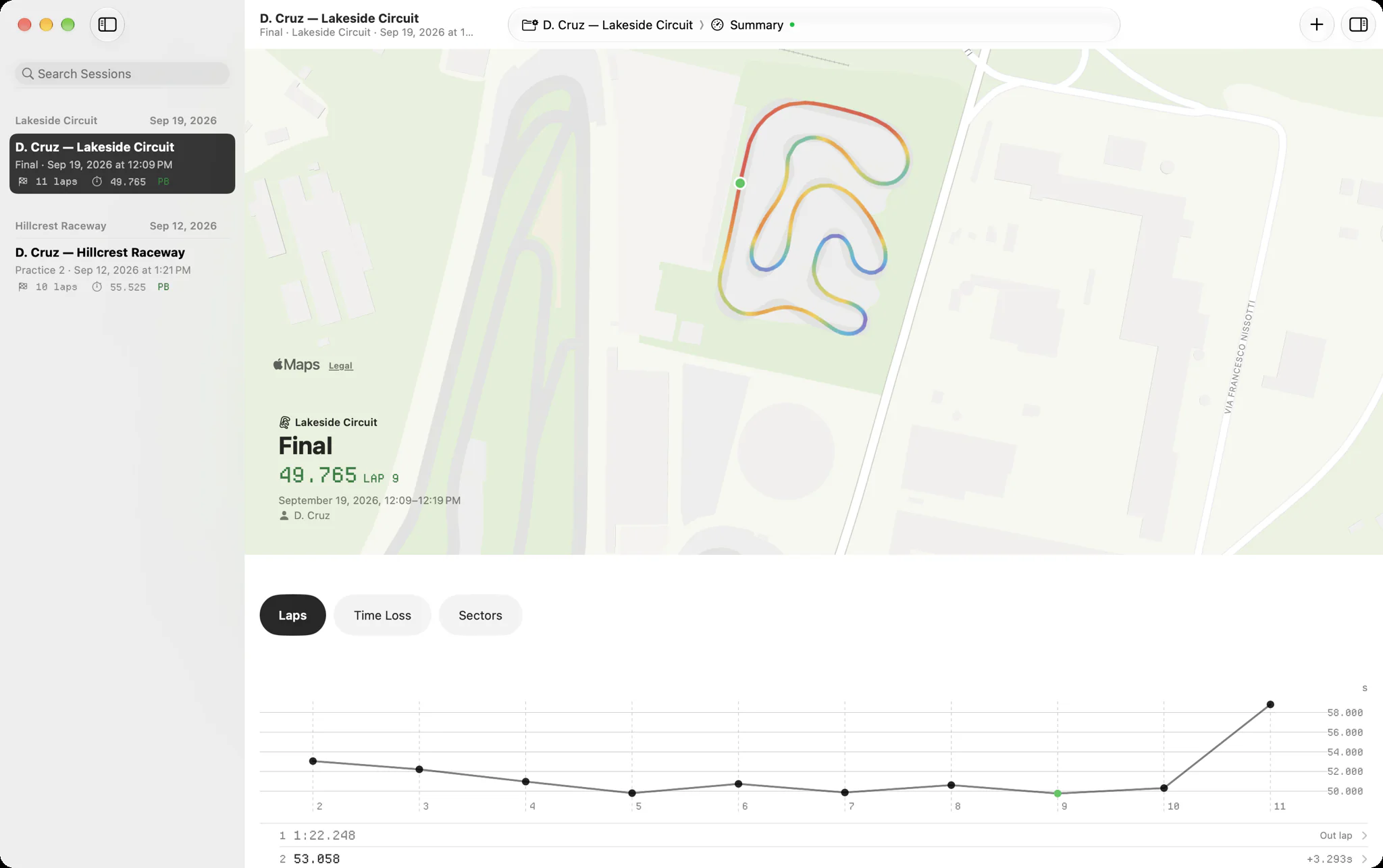
An XRZ file is an AiM session compressed with zlib: the same laps, GPS and channels as an XRK file, in less space. RaceStudio 3 saves every download as one. Slicks opens XRZ files on a Mac, iPhone or iPad directly, with no unzipping and no AiM software, and it can take a whole folder of them at once.
What an XRZ file is
AiM loggers record each session as an XRK file. When RaceStudio 3 downloads a session it stores it compressed, as XRZ. Nothing is lost: decompress an XRZ and you have the XRK back. The point is size, which adds up across a season of sessions.
Two things trip people up:
- It is not a zip file. It is a single compressed stream, not an archive, so renaming it to
.zipand double-clicking it does nothing useful. - You never need to decompress it. Slicks reads the XRZ as it is. So does RaceStudio 3.
If you want to know what the session inside holds, our XRK file viewer page goes through it block by block.
Where RaceStudio 3 keeps them
On the Windows laptop that downloads your logger, RaceStudio 3 puts each session in a folder for the day it was downloaded:
C:\AIM_SPORT\RaceStudio3\user\data\<date>\
Every day you downloaded is its own folder, so a season is a few dozen folders under data. Two exceptions
to know about:
- Files you imported from somewhere else, such as a session a teammate emailed you, stay where they were.
RaceStudio 3 opens them in place rather than copying them into
data. - Some sessions may be
.xrkrather than.xrz, such as files someone sent you.
To be sure you have everything, search the laptop in File Explorer for *.xrz and then for *.xrk, and
look in Downloads and on any USB sticks that lived in the kart bag.
Bringing a season over from an old Windows laptop
This is the job most people put off. It is shorter than it sounds.
- Copy the whole
datafolder from the Windows laptop to a USB stick. Keep the folders as they are; there is no need to pick sessions out. - Add any strays you found by searching: sessions outside
data, other drivers' files, the ones on old sticks. Put them in the same place. - Plug the stick into your Mac and copy the folder off it.
- Bring it all into Slicks in one go. Drag the sessions onto the sidebar, or use File › Import Sessions… (⌘O); a whole folder of sessions comes in at once. On an iPad, open them from the Files app.
Slicks asks what you changed on the kart when you bring in a single new session, the one you just drove. A season's worth at once is a different job, and you can add notes to the sessions that matter afterwards.
Each file carries its track, driver and date, so you do not need to rename anything or sort by hand. If the Windows laptop is the one you download with at the track, keep using it for that; a shared folder such as iCloud Drive, Dropbox or Google Drive on the laptop gets each new download to the Mac without the stick.
What a season of sessions gives you
One session tells you about a day. Thirty tell you about a season.
- The Tracks tab groups every session by circuit. A track's page opens with your best lap there, drawn as a 3D lap icon, over the history of every session you drove at it. Our personal best tracker page shows how to use it.
- The Mac sidebar groups sessions into race weekends, with a search field over them, so last June's weekend is easy to find again.
- Sync puts the whole library on your iPhone and iPad too once you sign in, with the newest sessions' files downloading in the background.
Old sessions came with no setup notes. Each session has a Notes page; write in what you remember while you still do, such as the gearing at a track you go back to every year.
When some files will not come in
A file that does not open is usually one of these:
- A
.drkfile from RaceStudio 2. Slicks does not read those. - A file from another brand of logger. Slicks reads AiM's XRK and XRZ only.
- A copy that was cut short. Copy it again from the Windows laptop.
What Slicks does not do: it does not run on Windows, so it cannot look through the old laptop itself, and it does not download from the logger. The files have to come across to an Apple device first.
