
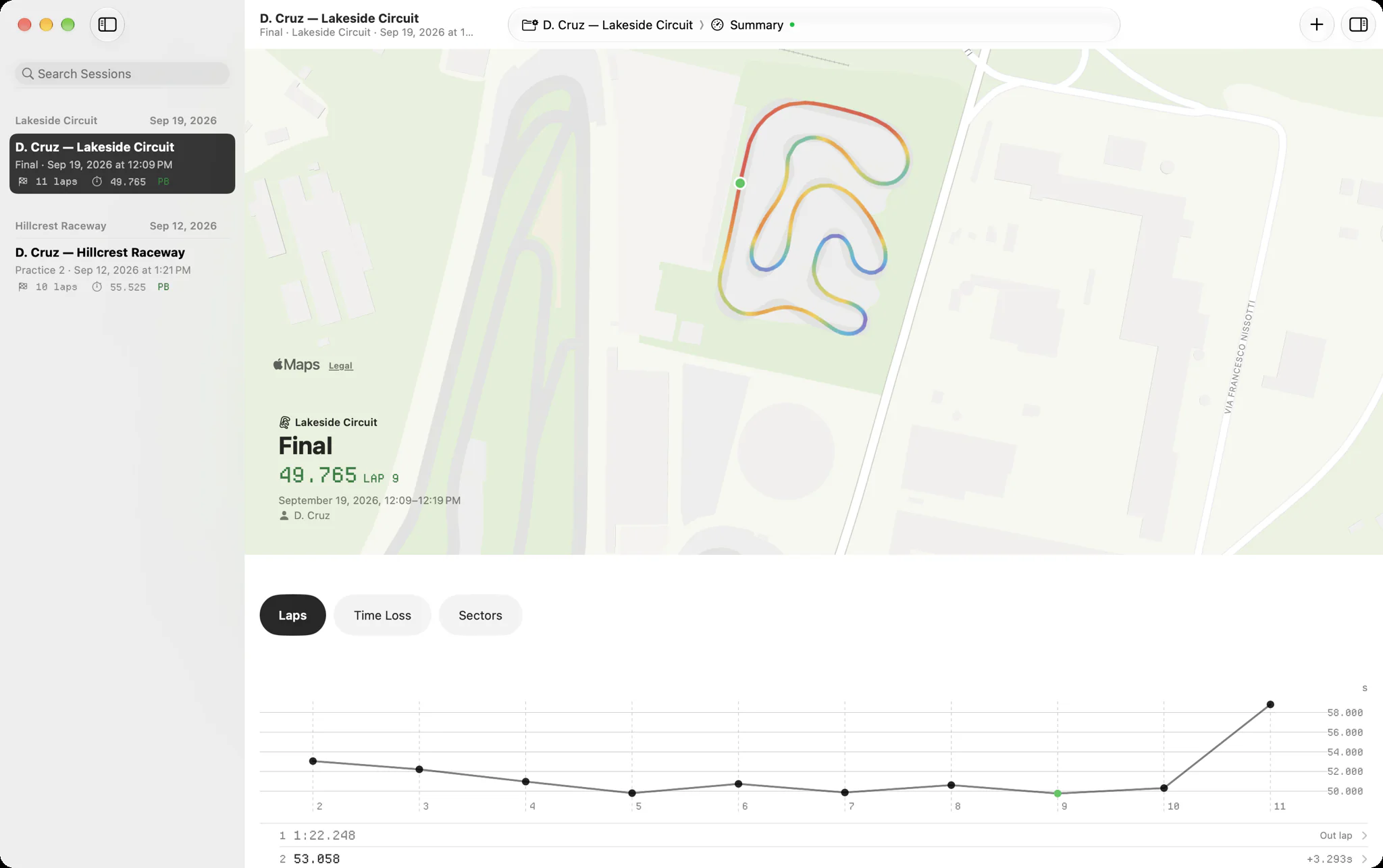
Slicks is a native Mac app for AiM and MyChron data. It opens XRK and XRZ files with nothing from AiM installed, keeps every session in one library window grouped into race weekends, and gives each session four tabs: Summary, Track, Laps and Channels. It is free, and the same library syncs to your iPhone and iPad.
What the window looks like
On the left, a sidebar of sessions grouped into race weekends, with a search field at the top that finds a track or a driver across everything you have imported. In the middle, the session you picked, on one of four tabs. On the right, an inspector you can show or hide: the session's notes, the engine's peaks, the kart's setup, sharing, the file's details including its GPS quality, and every channel's range.
It is a Mac app in the ordinary sense. It has a menu bar, keyboard shortcuts and windows you can move to a second display. There is no virtual machine, and nothing to keep Windows updated for.
Bringing in a season at once
If you have been downloading sessions with RaceStudio 3 on a Windows laptop, the files are probably already sitting there as XRK files. Copy the folder across and drag it onto the sidebar: Slicks imports every session in it and reads the track, driver and date from each file. File › Import Sessions… (⌘O) and Finder's Open With › Slicks do the same.
Step-by-step help, including where RaceStudio keeps its files, is in how to open AiM XRK files on a Mac.
The four tabs
| Tab | Shortcut | What it shows |
|---|---|---|
| Summary | ⌘1 | The session screen: fastest lap on the map, then Laps, Time Loss, Sectors, Setup and Notes |
| Track | ⌘2 | The map with an overlay and lap picker, and six GPS channels for the lap you pick |
| Laps | ⌘3 | A sector picker from 2 to 10, and one channel charted across every timed lap |
| Channels | ⌘4 | Every channel in a table with a sparkline, and the one you pick charted over time or distance |
Summary is the same session screen as on the phone, with room for a lap-trend chart under the laps. Track colours the map by speed, lateral g, longitudinal g, altitude or any channel the logger recorded, and cuts it to one lap. Laps is where the sector count lives on the Mac: pick 2 for a short club circuit or 10 for a long one, and the theoretical best is worked out again. Channels is the one to open when a question does not fit a summary.
Working with the charts
A Mac has a pointer, and the charts use it. On the Channels tab, move over the chart and a cursor follows, with the exact reading under it. Zoom in on one straight, switch the axis between time and distance, or turn on delta mode.
Open a lap and the lap screen charts every reading the map can be coloured by against one distance axis, with one cursor across the charts and the map, and playback at 1×, 2× or 4×. Any chart opens in its own window. Put RPM on one display and the speed trace on another, or keep a chart open beside the library while you click through the weekend's sessions.
To compare two laps from one session, pick them on the Laps tab; the lap comparison page covers what Compare shows.
The same library on every device
Sign in with a free Slicks account and the sessions you imported on the Mac are on your iPhone at the next race, and anything you import at the track is on the Mac when you get home. Notes and setup go with them. Slicks works offline on the Mac too; sync catches up later.
If you are weighing up running RaceStudio itself on a Mac instead, the RaceStudio 3 on a Mac page sets out the options.
What Slicks on the Mac does not do: it does not configure the logger or download from it, it has no math channels or CSV export, it does not sync video, and it cannot overlay laps from two different sessions.
